

 Suzi Smart Bear
Have you used our website support site?
If not, this blog is here to help you get used to using it.
It’s really straightforward to log a ticket and find answers to some common problems; it’s also the easiest way to get in touch with us if you need our help – especially out of hours! We get phone notifications when a ticket has been logged, so we’re always aware of what is happening and we organise cover if we’re unavailable for long periods of time.
Let’s start with how you log in and register for a user
The important thing to know is the URL, which is below. We’d advise that you save this in your bookmarks and also save your user and password in a password vault too! It’s just easier to not have to remember it all!
https://support.thesmartbear.co.uk
When you go to the page – you should see the screen below. From here you can sign up for a new account using the big orange button, or log in if you’re already registered… If your’e a new user, you’ll need to read and sign our Terms and Conditions first which is where you’ll go when you click the orange button, ringed in the screenshot below.
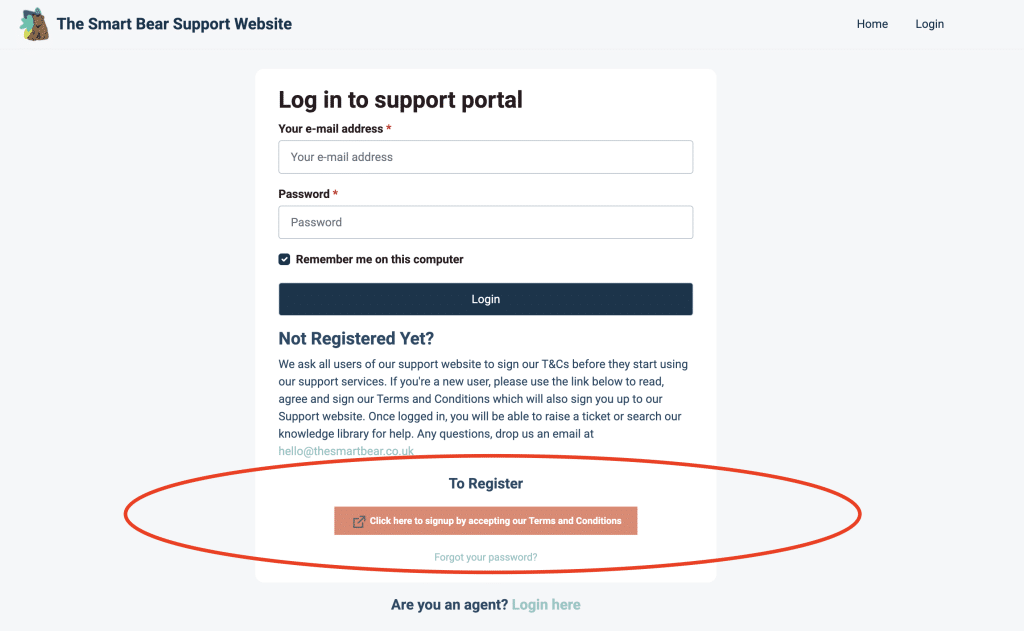
Once you’ve signed the T&Cs, you should get some emails from the support site on completing your registration.
If you don’t, then get in touch. It may end up in spam thought – so make sure you have a peek there too!
Oops I forgot my password
We all do it, but sometimes we forget our passwords, particularly if we’re being super secure and have a randomised 16 character one (don’t get us started on passwords!)
So if you go to the sign-on page, you can do a password reset from there where it says ‘Forgot your password’ – you’ll see it underneath the orange button on the screenshot above. Once you’ve done that, you’ll be sent an email to reset the password and then, you should be good to go!
Remember, it’s worth using a password vault to store all these passwords, like lastpass.com
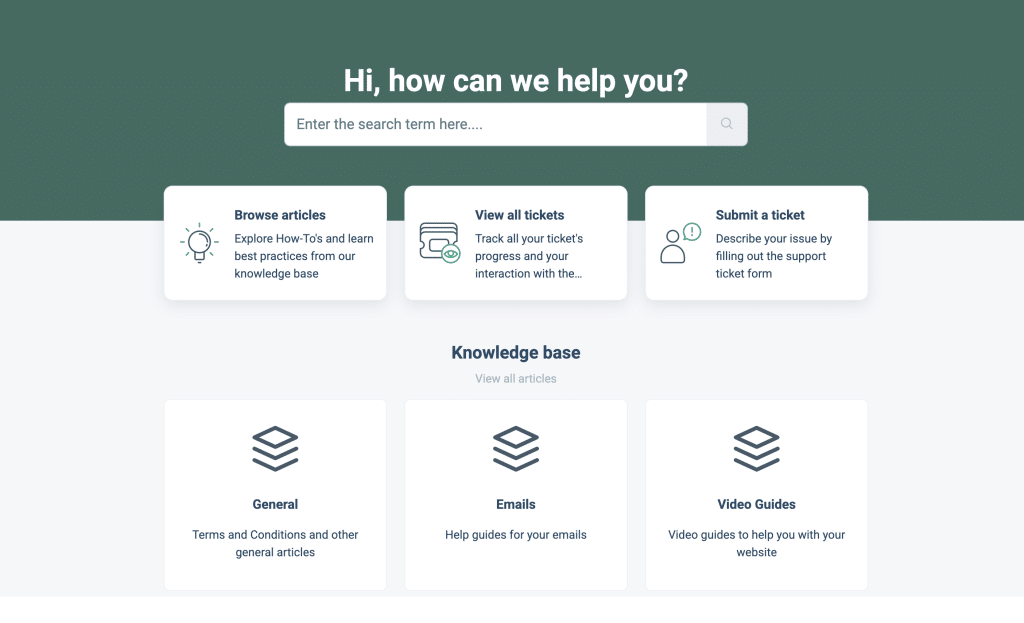
What do we need to know about when you log a ticket?
Before you raise a ticket, it’s useful if you can clear your browser cache, first, as that often solves many issues and will save us both time. It might also be worth searching the knowledge base in case we’ve provided an article on what to do to fix common issues.
When completing the ticket, please tell us about everything you know. It’s useful to provide screenshots or videos of errors as this helps us narrow it down. Loom.com is a great tool for recording your screen, and it’s free.
If you have an issue with a specific page – adding the link to the page is also really helpful. Information about what device (mobile, desktop etc) you’re seeing the issue on, and what browser (chrome, safari, firefox etc) can also help.
Whilst this may sound like overkill, with so many different phones, browsers and tech out there, it all assists us in finding the fault for you.
Basically, too much information is just not possible when it comes to a ticket.
Above the ticket form, we list anytime we’re out of the office and if cover is provided. If we’re away and there’s no or limited cover, there may be a delay in when we can get back to you. But, we try to answer tickets as fast as we can, especially if they’re urgent.
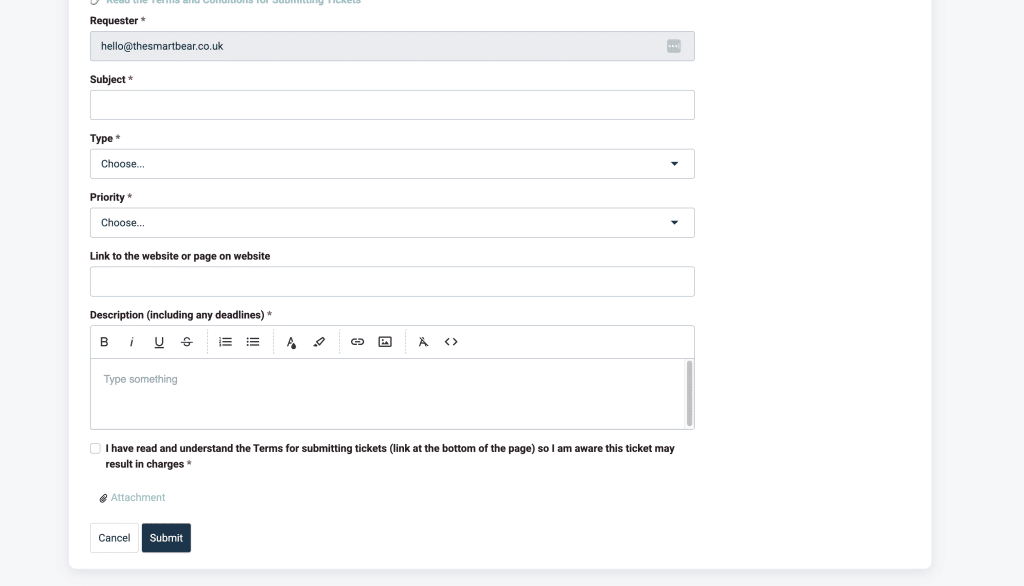
A word on priority
We know this is going to sound harsh, but unless your site is down and actually unusable, or your emails are not working at all then that is the only time you should use the CRITICAL priority because we’ll drop everything when we see a CRITICAL ticket come in and that’s not fair to our other customers.
Also, it’s worth clarifying that sites do sometimes go down. Servers can have problems, so your site may go down, then come straight back. If it’s been down for more than 15 mins, then that is definitely an issue, so feel free to get in touch. We’ll do all we can to help.
When it comes to other priority issues etc, we always do our best to work on these as soon as we can. However, we will need to fit this in with other work that has been already been scheduled. So if you’re logging a ticket for a site change, please remember that we may need to schedule in the work first – but we’ll keep you posted!
Please keep in mind lead-times for this. For example, if you want us to add an event to a page. If that event is less than a week away, we may have to disappoint other people to fit you in. So the longer the lead time the better.
Out of standard hours priority tickets have a 30 minute minimum charge.
Is your problem a chargeable issue?
As much as we’d love to help everyone, we do need to charge for our work if you’re not already on one of our maintenance plans with inclusive amends. See our Bear Care packages here.
Some general rules when it comes to chargeable work are…
- If your website was built by us, but is more than 1 month old
- If your website is not built by The Smart Bear
- If you have not subscribed to a monthly Bear Care package
- You want further development work like a new page adding etc.
Investigation work is a minimum 15-minute charge, at which point we will advise of any further costs. Of course, we can quote in advance for work too, simply let us know that you want an estimate first on the ticket so that we know that’s what you need.
Where are my tickets?
When you’re logged in, simply click ‘Tickets’ in the main menu. There is a search facility in the top right area so you can always search through to see if you’ve had an issue before, and to see if what the solution was then – it might save raising a new ticket.
On the ticket page, you can see closed, open and on-hold tickets. Each ticket will be given a reference number. Once you log a ticket you’ll also get an email too with the details. And further emails when we reply. We recommend replying to us via the support site.
If you need to close a ticket then you can do this too!
If for some reason the emails get lost in cyberspace, just log in and they’ll all be there waiting for you – this is handy if your emails are down as you can still reach us and respond whilst we get it back up and running for you.
The font of all knowledge
Well, perhaps it’s not quite that, but our knowledge base is growing with lots of useful tips that you may need.
It’s always worth having a look in here first, to see if we’ve already answered your question. It could save you some time!
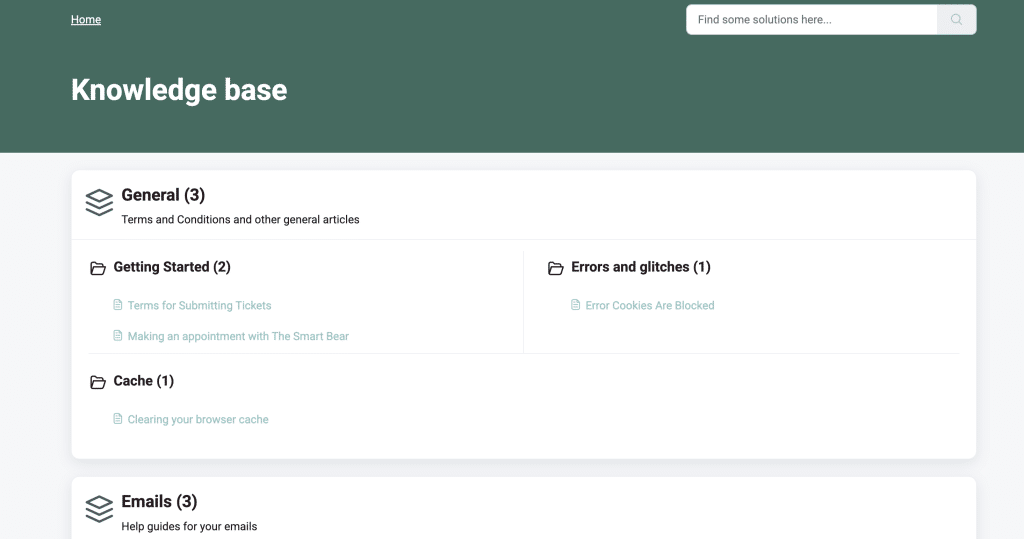
There are articles about setting up emails and other common problems like how to clear your browser cache. There are also a number of video guides to help you. If you can suggest a great article subject for the Knowledge base, please get in touch!
We hope that this blog makes you feel better about using our ticketing system.